Changing devices & keeping your save safe
Last updated (for Ver4.0.3)
How to move your save between iPhone, iPad and Android, and what to avoid so you don't lose it.
Your save is stored on the device you play on.
When you switch devices, the most important rule is: don't delete the game from your old device until your save has arrived on the new one.
First, which kind of move is it?
Where your save lives
| Where | What | Who can restore it |
|---|---|---|
| On the device | Your normal save (saved automatically) | — |
| iCloud (iPhone, iPad, Mac) | A copy of the device save, written about once a minute and whenever you leave the app | You (from the game's settings) |
| Our server backup (since Ver4.0) | A backup about once a day: the last 7 days, plus the furthest you ever got (deleted about six months after the last upload) | Us (contact us) |
iCloud doesn't update instantly. It can take a few minutes.
iPhone/iPad → iPhone/iPad (same Apple ID)
- On the old device, open the game, play for a moment, then go back to the home screen. This writes your latest save to iCloud.
- On the new device, check at the top of the Settings app that you're signed in to iCloud with the same Apple ID.
- Open the game on the new device and wait about 5 minutes with a good connection. When “Restore from iCloud” appears, tap “Restore”.
- If it doesn't appear, open the game's Settings → Data → iCloud Backup. If the iCloud save shows your old progress, tap “Restore from iCloud” → “Restore”.
- When you're done, use “Restore purchases” in the Shop to get your one-time purchases back.
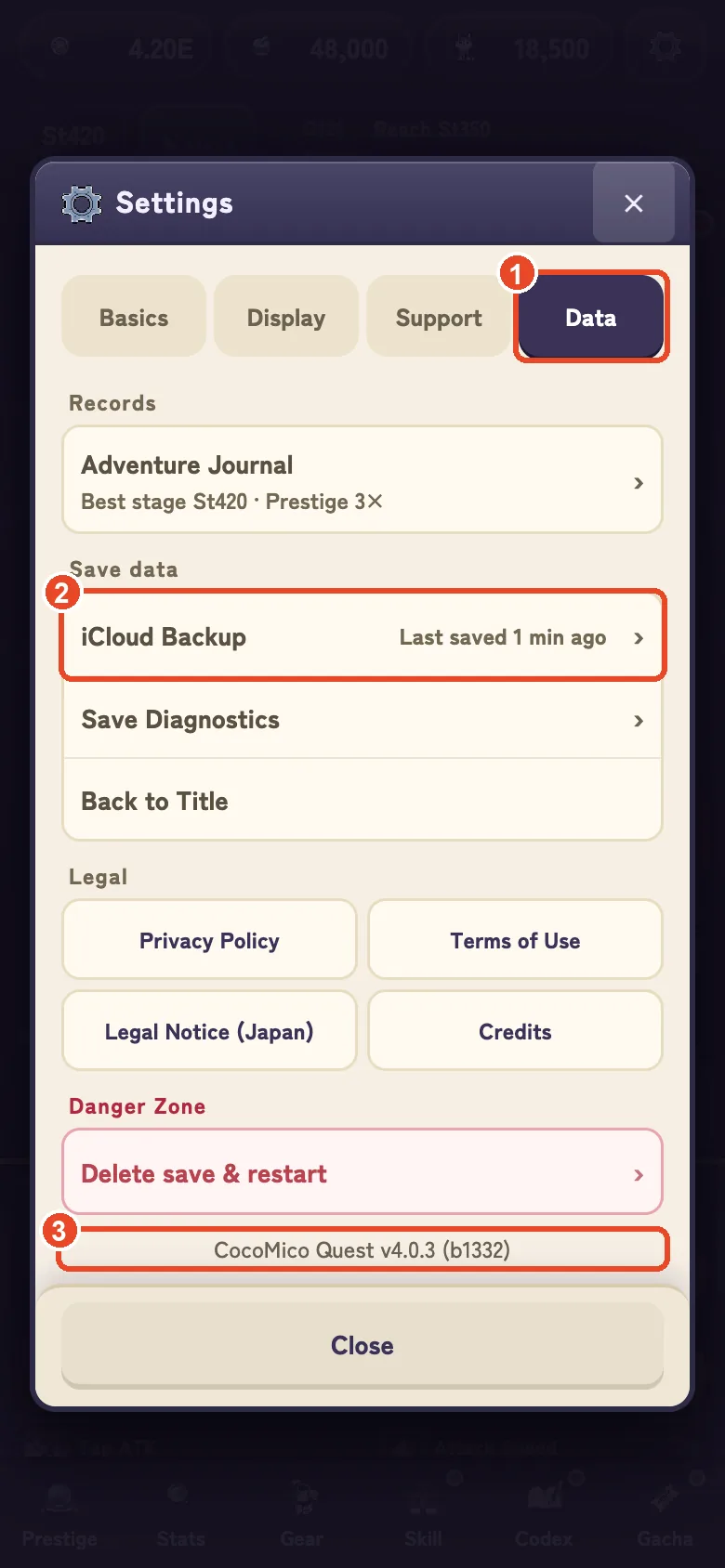
① the Data tab → ② iCloud Backup lets you view and restore your iCloud save. ③ Your current version is shown at the bottom.
Don't play ahead or buy anything on the new device until your save arrives.
Tapping “Cancel” on the “Restore from iCloud” screen overwrites your iCloud save with the new device's fresh save. A copy of the old save stays on the device and can be restored from the iCloud Backup screen, but if you're unsure, contact us before tapping it.
Playing the same save on iPhone and iPad
In the current version, saves are per device. There's no way to keep playing the same save on two devices at once.
If you alternate between two devices with the same Apple ID, the game will ask “Which save do you want to play?” when it starts.
The save you don't pick is kept, and you can restore it from Settings → Data → iCloud Backup.
We recommend choosing one main device.
Android → Android
There's currently no way to link your save to a Google account.
Restoring your device's Google backup may bring it back, but it isn't guaranteed.
If it doesn't come back, we can deliver it from our backup, as below.
Between iPhone and Android
You can't move it yourself in the current version.
If you've played Ver4.0 or later at least once, we can deliver your save from our server backup to the new device.
- Install and open the game on the new device, then send us a message from Settings → Support → Contact Us saying you changed devices. The new device's Support ID is added automatically.
- We find your backup and send it to you as an in-game mail.
- On the new device, open Event → News from the Team and claim the mail with your save. You'll then see “Which save do you want to play?”. Choose “Save we sent” to play with it. The save you didn't choose is also kept on the device.
Backups are made about once a day, so the last day or so of progress may not come back.
One-time purchases can't be moved, because the App Store and Google Play are separate stores.
If you lost or broke your device
- iPhone/iPad: on a new device signed in with the same Apple ID, your save should still be in iCloud. Try from step 3 of “iPhone/iPad → iPhone/iPad”.
- If iCloud doesn't bring it back, or you're on Android: contact us from the new device via Settings → Support → Contact Us. If you've played Ver4.0 or later, we can deliver it from our backup.
Things not to do
- “Delete save & restart”: your progress and Gems are deleted, and your iCloud save is overwritten with the fresh save at the same time. A copy of the old save stays on this device only, and you can bring it back from the other save under Settings → Data → iCloud Backup (the copy is lost if you delete the app). One-time purchases, the 30-day pass, the Progress Bonus, the Hero's Notebook and titles are kept. It only works if you hold the button for 5 seconds, so it's hard to press by accident.
- Deleting the game from the old device before the move is done: deleting the app also deletes the save on that device.
- Playing ahead on the new device: if you play before your save arrives, you'll start from a fresh save.
What to include when you contact us
Sending from Settings → Support → Contact Us adds your version, stage and Support ID automatically.
It helps if you also tell us:
- Whether the old and new devices use the same Apple ID (or Google account on Android)
- Whether you still have the old device
- Whether “Restore from iCloud” appeared on the new device
- Whether you bought anything on the new device
- Your highest stage and ranking name, if you know them
See also the FAQ and the support page.
The icons on this page are purchased assets from the same artist as the game’s icons. Please don’t repost them or use them as material.