If the game goes back to the title screen
Last updated (for Ver4.0.3)
What to try first when the game suddenly returns to the title screen, gets hot or slow, or has no sound.
Sometimes the game suddenly goes back to the title screen while you're playing or idling.
Your save is not lost. Only the last few dozen seconds may not have been saved.
What's happening
When an iPhone or iPad runs low on memory, it can shut down the part of the app that shows the game.
The app then reloads and starts from the title screen.
It doesn't mean your save is broken.
Reports are most common:
- after leaving the idle screen on for a long time (tens of minutes)
- during boss battles or gacha animations
- when you come back to the game from another app
From Ver4.0 to Ver4.0.3 we've kept working on reducing how much memory the game uses.
First, please update to the latest version.
What you can do (try in this order)
- Close the app for long idlingNo risk of crashing
- Graphics: Power SaverSettings → Display
- Reduce motionSettings → Display
- Lower the BGM volumeSettings → Basics
- Still happening? Contact usSettings → Support
1. Close the app when idling for hours
Even while it's closed, up to 24 hours of Coins are waiting for you the next time you open the game.
That's safer than leaving it open for a long time.
2. Set Graphics to Power Saver or Max Saver
Choose it in Settings → Display → Graphics.
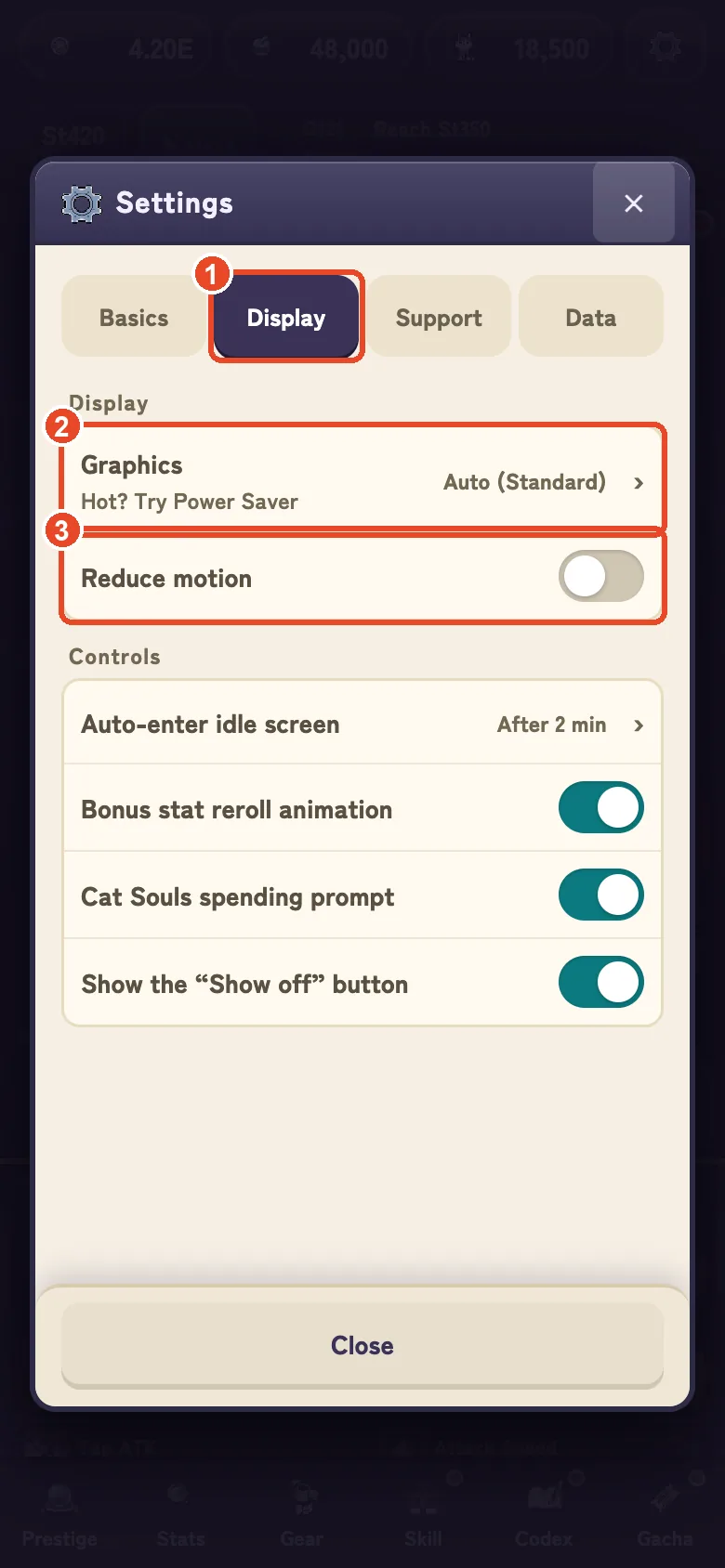
① tap the Display tab → ② set Graphics to Power Saver or Max Saver → ③ turning on Reduce motion as well makes it lighter still.
| Graphics | What it does | Good for |
|---|---|---|
| Auto | Switches automatically depending on heat and load | Everyday play |
| Smooth / Standard | 60fps | Newer devices, best looks |
| Power Saver | 30fps, half the particles | Hot, slow or crashing (the default for new players) |
| Max Saver | 24fps, effects stopped | Still hot or crashing |
The picture gets rougher, but the game progresses exactly the same.
3. Turn on Reduce motion
Settings → Display → Reduce motion stops particles, shaking and light effects.
It turns on automatically with Max Saver.
4. Lower the BGM volume
Setting BGM Volume to 0 in Settings → Basics can make the game lighter.
5. Choose when the idle screen starts
In Settings → Display → Auto-enter idle screen you can pick 1 to 10 minutes, or Never.
The idle screen saves battery and heat, and battles keep going while it's on.
Device getting hot or slow
Steps 2 and 3 above help the most.
If your device gets hot while on Smooth or Standard, the game will ask once whether to switch to Power Saver.
Battle screen shrank to the top left
The bug where the battle screen showed up small in the top-left corner after opening another screen was fixed in Ver4.0.3.
On older versions, switching Graphics to another setting and back, or restarting the app, puts it back to normal.
No sound
- The bugs where there was no sound on Mac, and where sound stopped after coming back from another app, were fixed in Ver4.0. Please update.
- Check that BGM Volume and SFX Volume in Settings → Basics aren't at 0. You can check with “Test sound effect”.
If it keeps happening
Please send us a message from Settings → Support → Contact Us.
A record of what happened just before the crash is attached automatically, which helps us find the cause.
It also helps to tell us your device model and what you were doing just before (idle screen, boss battle, and so on).
You can also reach us from the support page.
The icons on this page are purchased assets from the same artist as the game’s icons. Please don’t repost them or use them as material.